
User Guide
Demonstrations on how to navigate and curating the dataset through Curation SDK
Get Started with the AIMMO Curation SDK
AIMMO provides tutorial with Python shell and running with snippet below, which downloads a small dataset and launches the AIMMO Curation App so you can see the overview.
Creat dataset
Start the SDK by creating the dataset of your choosing from your Azure blob storage. Use your API key provided in the user dashboard and connect the container by following step.
- Caution: Deleting data from storage after the dataset is created may affect the dataset displayed in the viewer.
- Dataset must have more than 30 image files. Image file supports jpg, jpeg, png, bmp.
- If the dataset does not have more than 30 acceptable image files, dataset will not be created.
from aimmocore import Curation
from aimmocore.core.storages import AzureStorageConfig

# Enter the issued API KEY.
cr = Curation(api_key={API KEY})

# Enter the AzureBlobStorage information.
azure_storage_config = AzureStorageConfig(
    account_name={blob account name}, # blob stroage account name
    container_name={container name}, # blob storage container name
    account_key={blob account key} # blob storage account key, Used solely for generating the SAS URL; it's recommended to use the Secondary Key for security)
Curation request
To generate SAS URLs for images stored in your Azure blob container, configure your settings using AzureStorageConfig. After generating the SAS URLs, save them in your local database. Then, send a list of these URLs to the curation server to initiate a curation inference request.
In parallel, create thumbnails for the target images and store them locally at ~/.aimmocore/thumbnails. Once the process completes, you will receive a dataset ID, which is a 12-byte binary ObjectId, such as 669979ec05f1db7968177eb0. This ID can be used for further reference or processing within your application.
"""Request for curation after creating the dataset

Args:
  name (str): The name of the dataset to be curated.
  storage_config (StorageConfig): Configuration object containing settings and parameters
                          necessary for storing and handling the dataset.
Returns:
  str: A unique identifier for the curated dataset, typically a dataset ID generated by the system.
"""

dataset_id = cr.curate_dataset(name="good dataset", storage_config=azure_storage_config)
Track the status of the curation data request
Track the curation progress using the returned dataset ID. If you set tracing=True, the request results are returned at 5-second intervals. The status of the curation process can be one of three states: Processing, Completed, or Failed.
When the curation is Completed, a completion message is displayed, and the metadata/embedding information is stored in the local database and the process ends. If the status is Failed, the dataset status is updated to Failed and tracking stops.
If tracing=False is set, the request is made only once.
"""Track the curation request status
Args:
  dataset_id (str): The unique identifier for the dataset whose curation status is to be tracked.
  tracing (bool, optional): If True, continues to trace until completion or until retries are exhausted.
                            Defaults to False.

"""
cr.tracing_curation_task(dataset_id=dataset_id, tracing=True)
Launch AIMMO Curation Viewer
Once the curation is complete, it can be reviewed using the local viewer. By executing the code below, you can access the viewer through a new browser window.
import aimmocore
aimmocore.launch_viewer()
Selecting Dataset
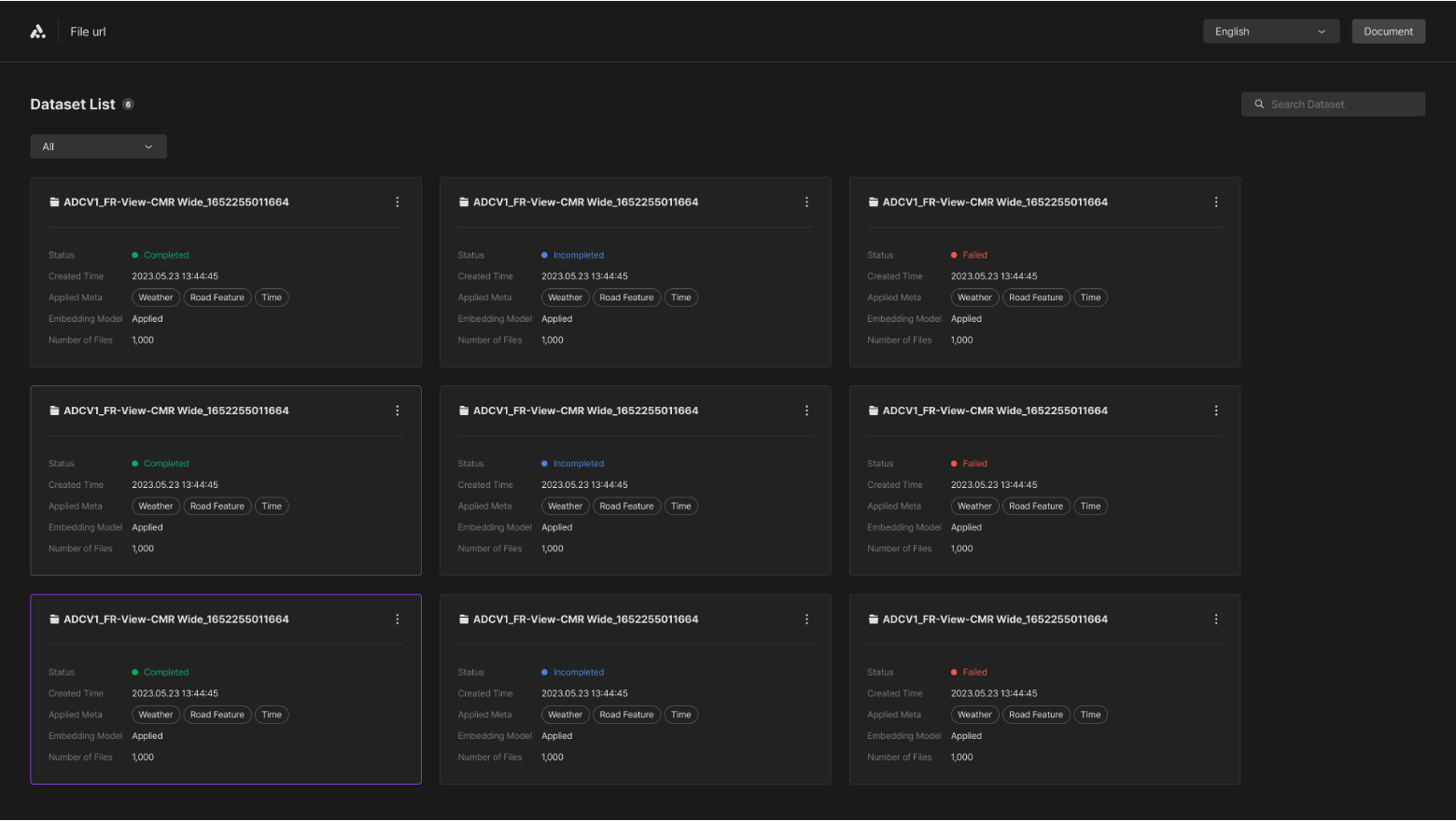
Launching the Curation Web interface allows you to access and review datasets retrieved from your Azure Blob Storage, including those previously loaded via the Command Line Interface (CLI). This interface displays datasets that have been processed and inferred by the AIMMO model. Each dataset is identified by a SAS URL, which serves as the dataset's name. To ensure efficient curation, only datasets marked as "Completed" in their status are eligible for curation. This approach ensures that users engage with fully processed and ready-to-use datasets, enhancing the usability and functionality of the Curation Web.
Dataset Status
The datasets you've processed may take time for inference due to various factors such as the status of the inference server or the size of the dataset. On the web interface, the statuses of the datasets are displayed as 'Completed', 'Processing', or 'Failed'.
Completed
- Indicates that all inference results for the dataset have been finalized. It's possible for some datasets to lack inference results, in which case they are categorized under a 'None' filter.
Processing
- Signifies that the inference results are not yet fully processed. This progress may take some time for the inference to be completed to determine if the inference is completed or failed.
Failed
- Denotes that the inference has not succeeded due to issues like communication errors or problems with the dataset's condition. When an inference fails, the API server usage costs for the dataset will not be deducted.
Type filter
You can filter the dataset type on either demo dataset which AIMMO provided by default or the dataset you inferenced using the CLI command.
Dataset search bar
Search the dataset by its name.
Dataset information
You can check each dataset information with the remarks in the dataset card.
Original dataset
- The name of the dataset you initially curated. The original dataset can be the same as the dataset.
Created
- The time of the last update.
Meta model
- The result of the inferenced metadata class.
Embedding model
- The result of the inferenced embedding model.
Download & Delete
You will be able to download or delete the dataset. Downloaded dataset will provide you with the result of the model inference in a json file. However, deleting the dataset will erase the selected dataset in the dataset list which will not be shown again. This step will also erase the model inference result. However, you cannot delete the demo dataset AIMMO provided by default.
Thumbnail View
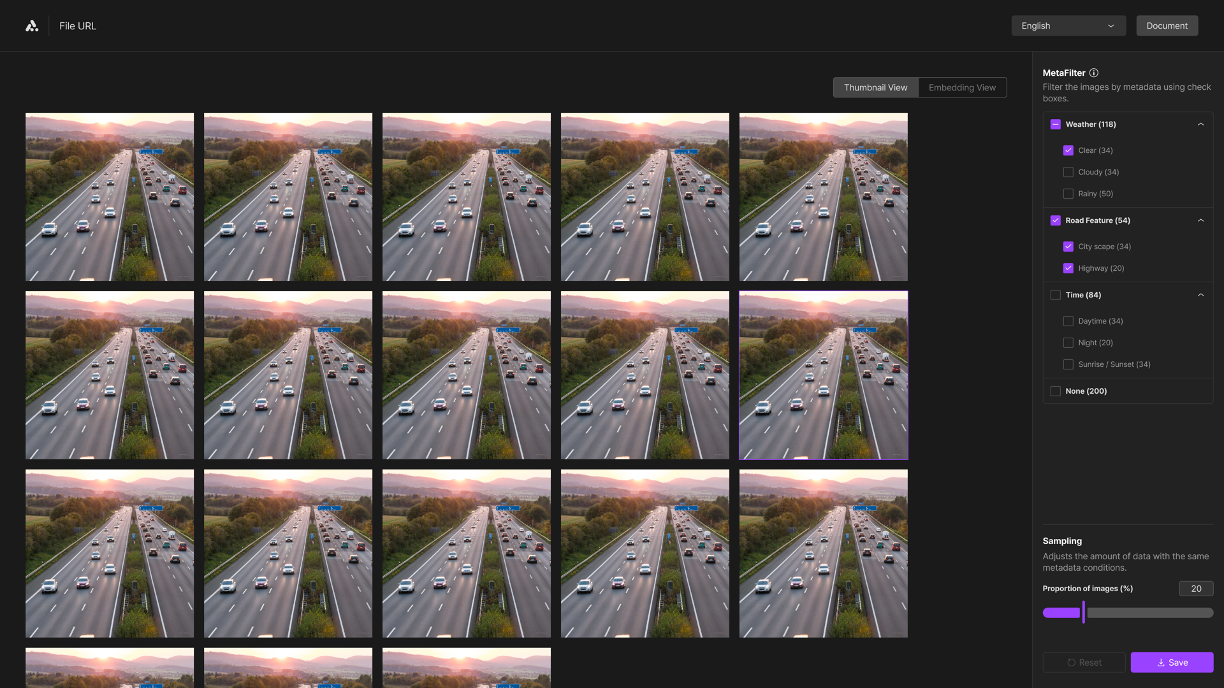
Upon selecting a dataset, you will be able to view a thumbnail gallery showcasing all the image files contained within that dataset. This feature facilitates the curation process, allowing for a visual overview and easier access to perform curation tasks on the dataset.
Thumbnail QFV
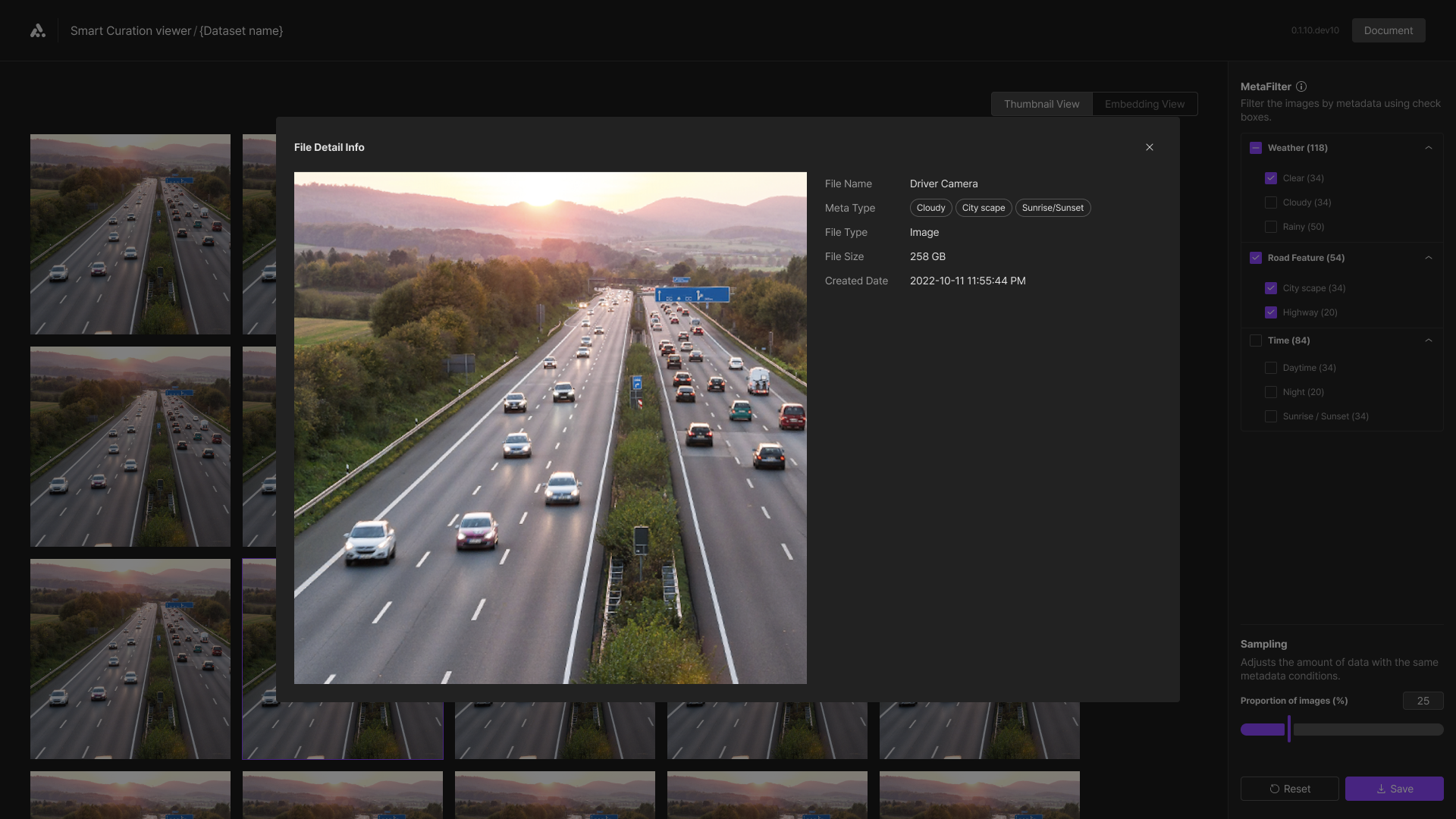
When you select an image in the thumbnail viewer, you can view the QFV of that image. You'll be able to see detailed information about the image including its name, metadata details, and file size information.
Meta Filtering
The metadata filter allows users to apply AIMMO's metadata model to refine datasets based on inferred metadata. We currently offer classifications for Time, Weather, and Road conditions, each subdivided into detailed classes. You will have visibility into metadata, enabling them to categorize data accordingly. Data without metadata are designated with a "None" filter.
Embedded view
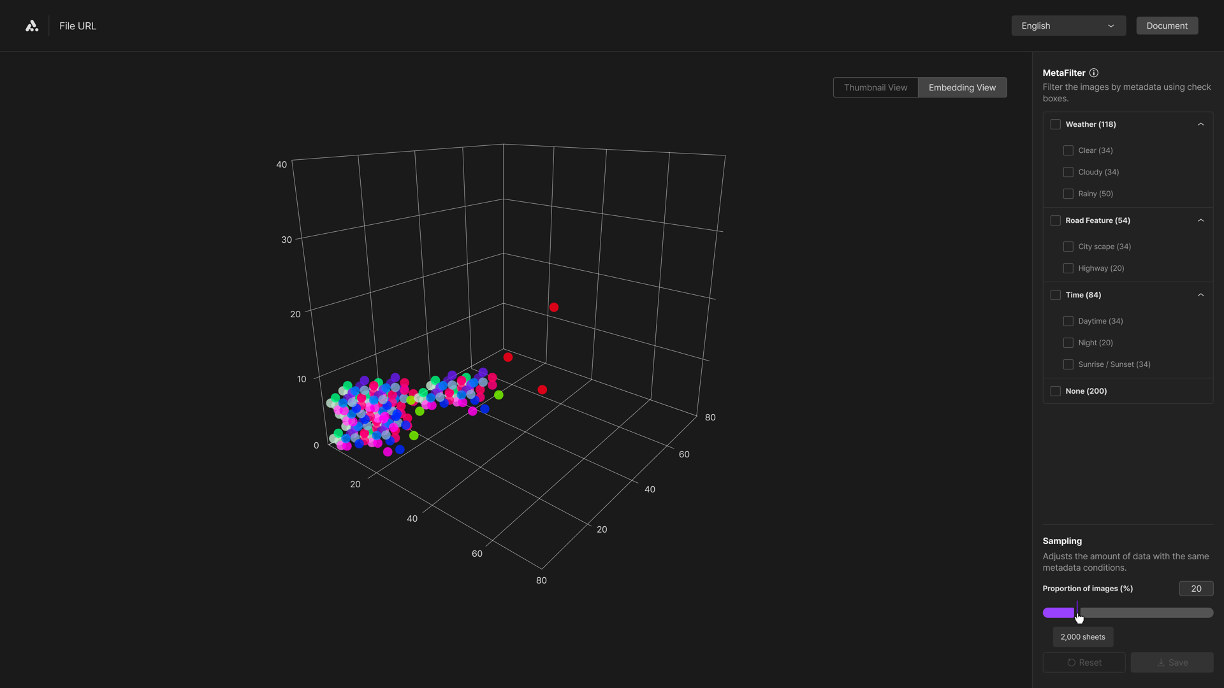
The Embedding Viewer enables you to visualize clusters of data points based on the metadata sets of the dataset, providing insights into the distribution of data for visual analytics. It displays each piece of data as a dot, organizing these dots into clusters according to their metadata attributes and class. This cluster formation enhances the visibility of the dataset's distribution. The three-dimensional graph allows for an immediate overview of these clusters, offering a benchmark for assessing the quality of the data.
Embedding QFV
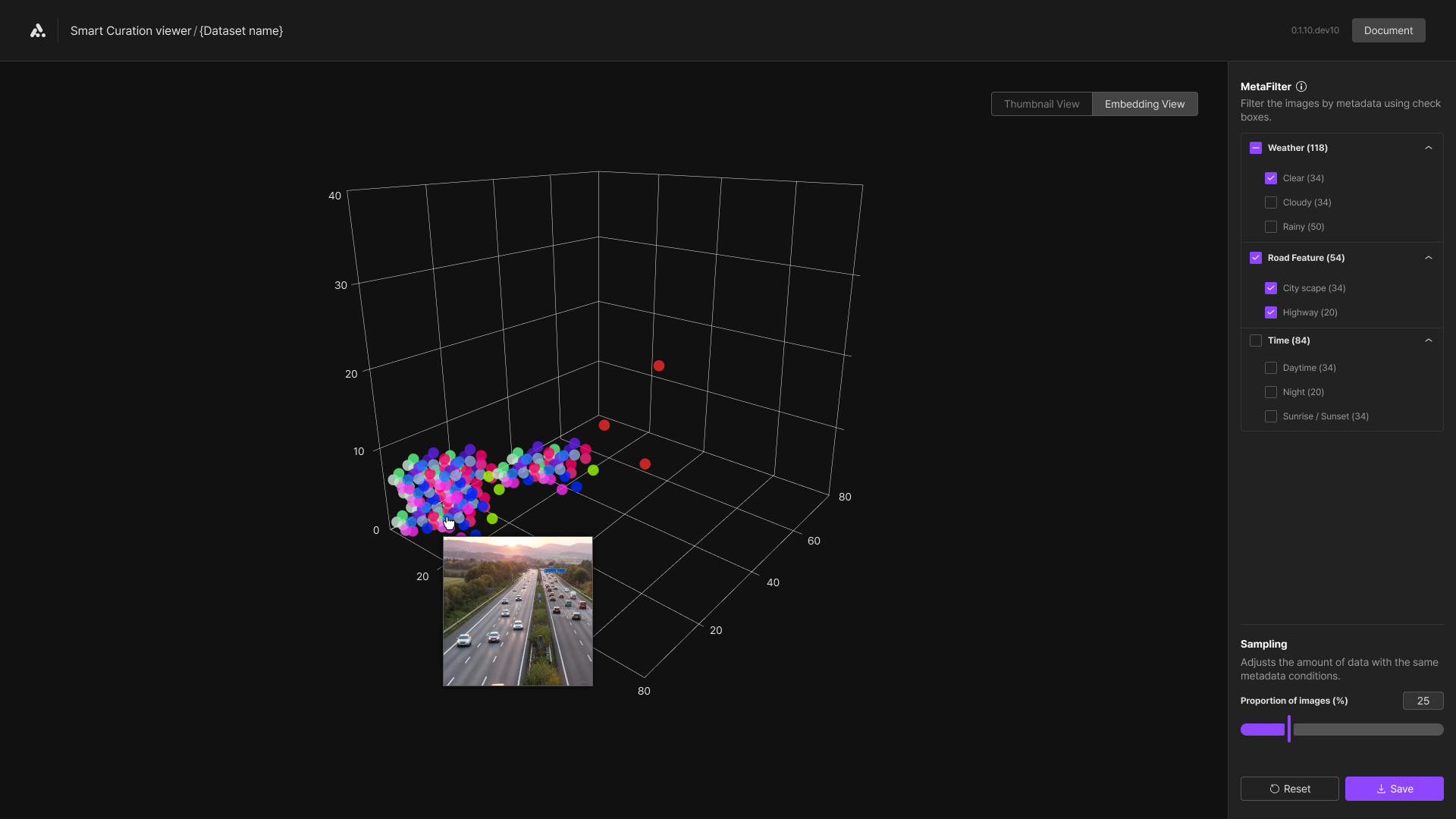
In the embedding viewer, hovering the mouse over the points on the graph allows you to preview the images, and clicking on them provides access to a QFV panel, which displays detailed information about the selected image.
Sampling
Sampling is a feature that allows you to adjust the size of a dataset while maintaining its distribution. You can modify the amount of data in 20% increments, providing a benchmark for reducing data processing costs while preserving dataset quality. Adjusted data is marked with red points, enabling you to identify which images are excluded from the dataset.
Save dataset
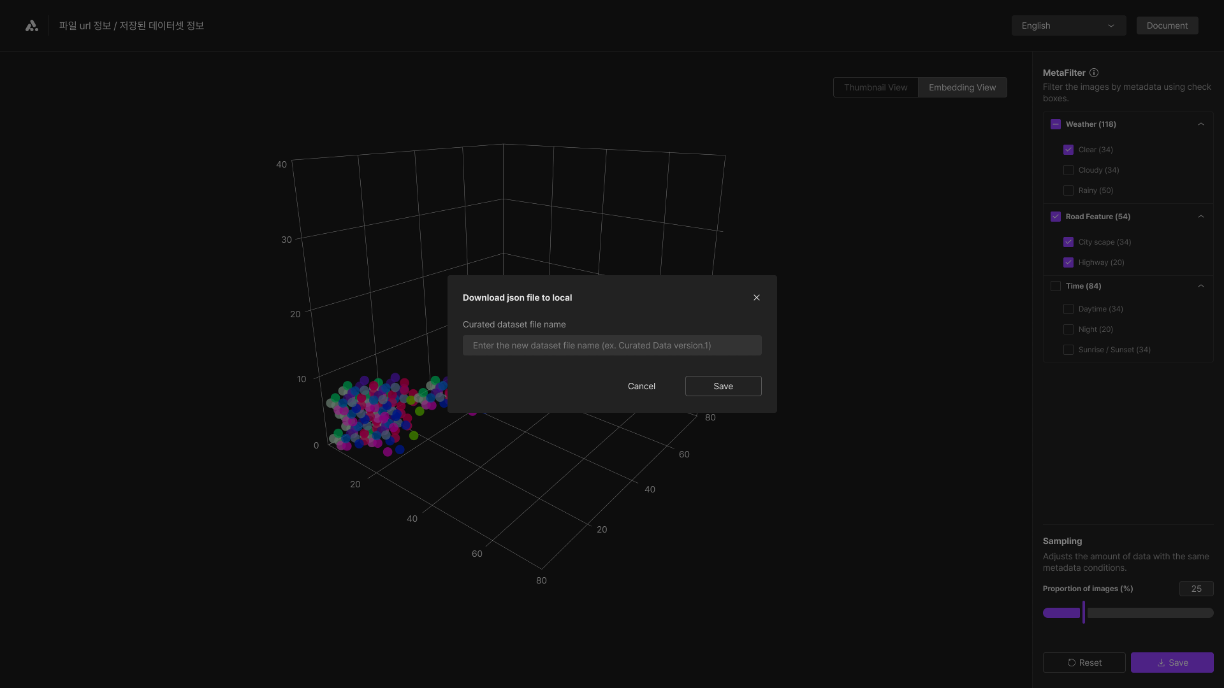
Upon completion of the curation process, the dataset is saved in JSON format locally on the user's device. The saved data is not stored back in the original dataset, allowing the user to reload the same dataset for curation under different criteria in future sessions.
Updated about 1 year ago
Upon completion of Curation, users can monitor their Model API usage through the dashboard to manage activity and Model API statistics.